How to Create AI Voiceovers: ElevenLabs vs Murf Workflow
AI voice tools can turn a script into polished narration without a microphone, studio, or repeated recording sessions. They are useful for explainers, product demos, training lessons, podcast segments, accessibility, and localized content. The technology is fast, but natural results still depend on the script, voice choice, pacing, and final edit.
This guide compares ElevenLabs and Murf and gives you a workflow you can use today.
Step 1: Write for listening, not reading
Text that looks good on a page often sounds stiff when spoken. Use shorter sentences, contractions, and clear transitions. Read the script aloud before generating audio. If you run out of breath or lose the point, the sentence is too long.
A useful script structure
- Hook: State the problem or promise in one sentence.
- Context: Explain why the listener should care.
- Steps: Deliver the useful information in a logical order.
- Example: Show how the idea works in practice.
- Action: Tell the listener what to do next.
Add punctuation where a human would pause. Spell unusual names phonetically if the tool mispronounces them, and generate short sections rather than one giant file so corrections are easier.
ElevenLabs vs Murf
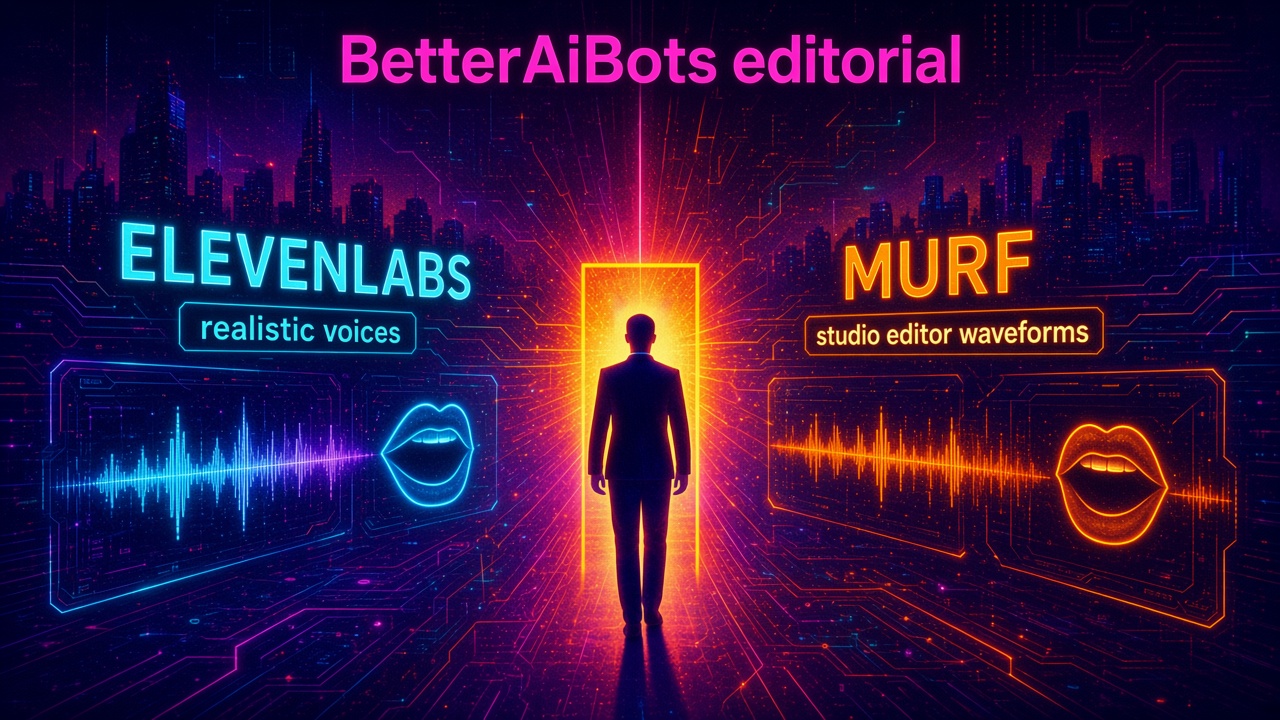
Choose ElevenLabs for expressive voice generation
ElevenLabs is known for realistic text-to-speech, multilingual options, dubbing, sound effects, and API access. It is a strong fit when voice realism and expressive delivery are central to the project.
- Narration for YouTube and documentaries
- Character voices and creative projects
- Multilingual dubbing and localization
- Developers adding generated speech to products
Choose Murf for a guided studio workflow
Murf combines text-to-speech with a studio editor, making it useful for business presentations, training modules, ads, and team projects where timing and scene-by-scene editing matter.
- Training and e-learning narration
- Product explainers and presentations
- Business teams that want an editor around the voice generation
- Projects needing voice, music, and timing in one workflow
The production workflow
- Break the script into scenes or paragraphs.
- Test two or three voices using the same 20-second passage.
- Choose the voice based on audience and tone, not novelty.
- Generate one section at a time and fix pronunciation immediately.
- Export clean audio and align it to your video or slide timeline.
- Add captions and listen once on headphones and once on a phone speaker.
How to make AI narration sound less robotic
- Use commas and sentence breaks to control breathing and rhythm.
- Vary sentence length so the delivery does not become monotonous.
- Replace formal phrases with the words people actually say.
- Regenerate only the weak sentence instead of the whole track.
- Keep background music below the voice and check the mix on small speakers.
Voice cloning and consent
Only clone a voice when you have clear permission from the person. Do not use generated audio to impersonate someone, mislead an audience, or create deceptive endorsements. Keep records of consent for client and team projects, and disclose synthetic narration when context makes it important.
Which tool should you test first?
If your priority is expressive speech, localization, or an API, start with ElevenLabs. If you want a guided production studio for business content, start with Murf. Generate the same short sample in both and compare pronunciation, editing time, and how the voice sounds in the final video rather than in isolation.
Read our ElevenLabs guide and Murf guide, or browse more AI tools with free trials before choosing a plan.